CloudBerry S3 Explorer Review

by Shabbir on July 16, 2010

This is the final Post in the S3 explorer’s review series where I shared my experience with quite a few of S3 Explorer’s.

I started with Amazon S3 Console Application which I could not work with because of errors more often than not, then I tried S3Fox but could not made it to work for caching of files, then BucketExplorer which had no issues apart from speed of operation. After few others like S3Browser and few more I found Cloudberry S3 Explorer. It has all I wanted to do with my S3 Account. So let me share with you my experiences

Positives

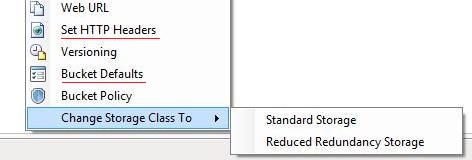
  1. Features in free version were good enough to get you going with your S3 experimentation and when you want to increase your productivity you can go for PRO version.cbexp menu CloudBerry S3 Explorer Review
  2. CloudBerry Explorer supports Custom Headers for both Reduced Redundancy Storage or RRS and Cache-Control.
  3. CloudBerry Explorer supports Default Settings For Buckets and so you do not need to do the same task of adding the headers over and over again.
Negatives

  1. Drag Drop from Windows Explorer does not work and you have to use built in explorer to upload files.
  2. Minimize actually makes it to go into System tray and I could not understand why.
  3. If you downloaded the Free Version and want to upgrade to Pro you have to download the setup files for pro all over again.

Features I would like to see

Have option to upload directly from my server. Something like I backup lot of files and if I have to move them to S3 I have to either use the command line on my server or download them to my PC and then upload it but if I can move them from my URL to S3 that would be great.

Over to you

This concludes the S3 Explorer’s review series. Share your thoughts in comment below.

Sign up for Free Course on Ways to Make Money Online?

Don't wanna sign up but prefer posts delivered to your Inbox?

But if you are not planning to subscribe through Email. Try subscribing to RSS.

{ 2 comments… read them below or add one }

cloudberryman July 16, 2010 at 1:20 pm

Thanks for making a review! There is an option that controls minimize behavior. Go to tools | options | general and look for the “system tray” option.

As for your comment on uploading directly from the server, I doubt you can make it using the desktop product. You need some code that will transfer the files running on on server, or perhaps on another server. Maybe someone implement a service like that in the future.

Reply

Shabbir Bhimani July 16, 2010 at 2:16 pm

Found the tools options and so that is great.

Also I guess I am asking for a bit too much but the main reason is I was not satisfied by many other browsers but that was just a suggestion

Reply

Leave a Comment

Spam protection by WP Captcha-Free

Previous post:

Next post: